Signing in and linking results
Sign in with one PARANAVI® account, and save guest results to it
You sign in to ABLE Insight with a PARANAVI® account. Under our One ID policy, PARANAVI® services can be connected with a single account.
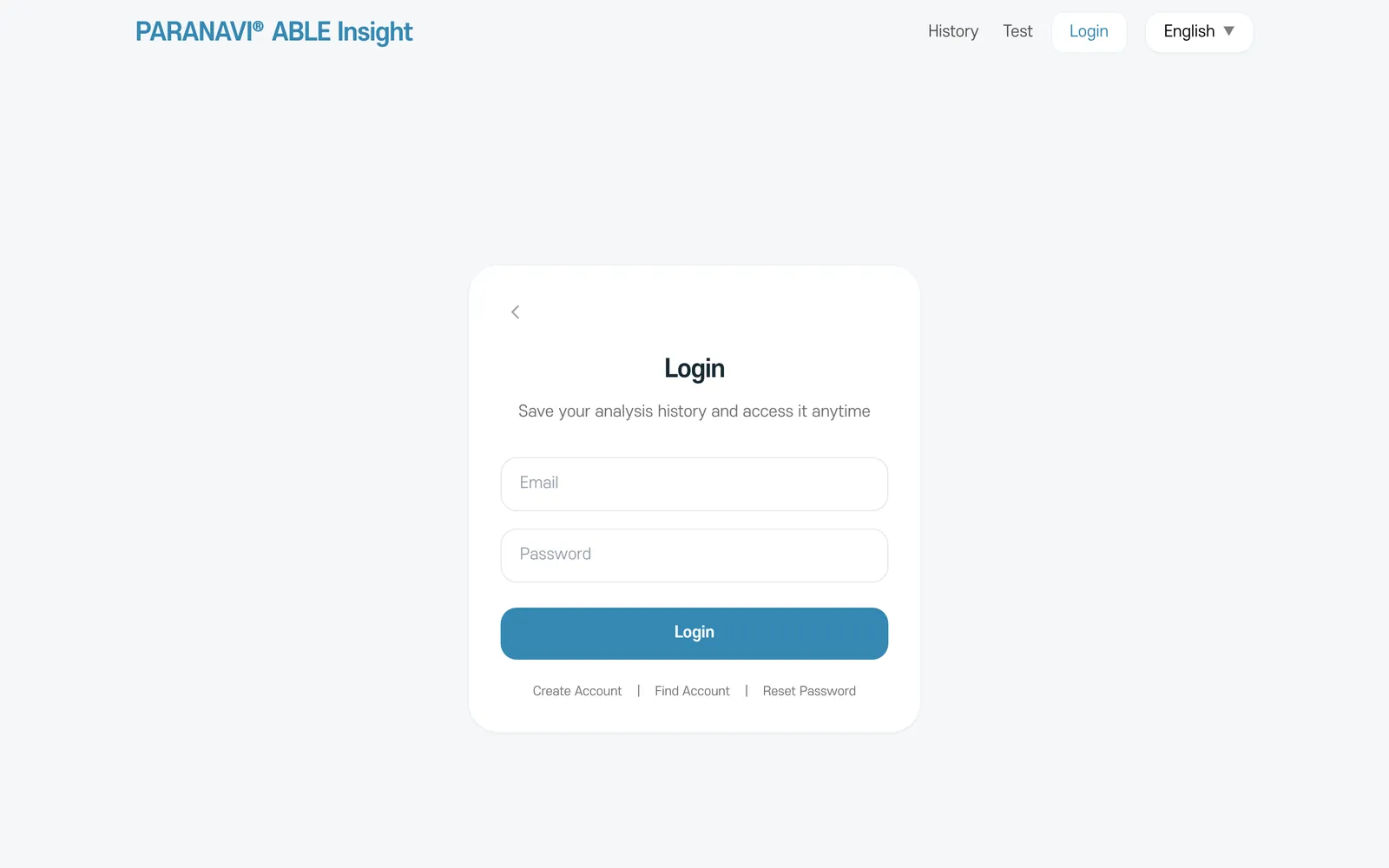
- Create Account: enter your name, email, password (at least 8 characters), and Confirm Password, then complete the CAPTCHA verification.
- Find Account: enter your name and part of your email (e.g. gmail), and we will send the details to the email you signed up with.
- Reset Password: we send a reset link to the email you signed up with. The link is valid for 30 minutes.
- Log out of all devices: at the bottom of My Page, you can end ABLE Insight logins left on other devices or shared PCs all at once. PARANAVI M and Lucky logins are ended in each service.
Saving a guest result to your account
- 1
Open the result
On the device where you took the check as a guest, open the result you want to save.
- 2
Log in and save to your account
In the deep-dive reading section below the result, press Log in and save to your account and sign in. The result is saved to your account and you return to the result screen you were on.
Signing in is optional
Without signing in, you can still see your result and the 12-item deep-dive reading on this device. Signing in lets you continue on other devices and compare side by side with a result you answer again in a month. This saves only the result you have open, and after you sign in, History shows only results saved to your account. Checks you take while signed in are saved to your account from the start. Paying for the 39-item report requires signing in.